Instagram Notifications Not Working? 7 Easy Fixes (2026 Guide)
26 June 2026 | By Abhishek
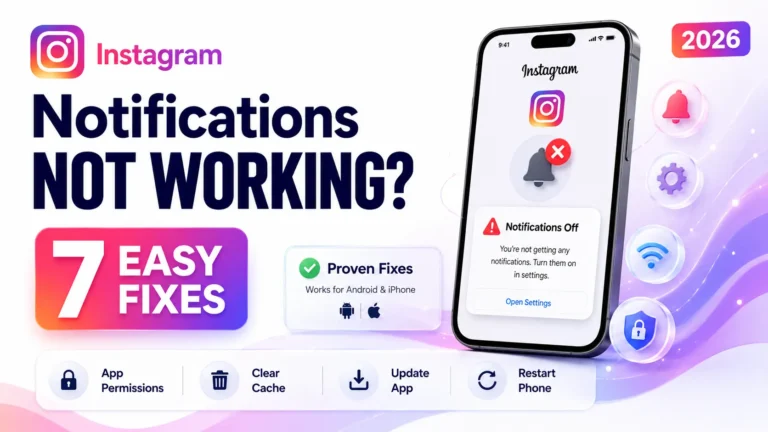
Missing Instagram notifications can be frustrating. You may not see new messages, comments, likes, or story updates until you open the app. This can make you miss important conversations, business inquiries, or updates from your favorite creators.
The good news is that this problem is usually easy to fix.
In this guide, we’ll explain why Instagram notifications are not working and share 7 proven fixes that work for both Android and iPhone users.
Let’s get started.
However, the term “without backup” is often interpreted as “without cloud backup.” If you’re on an Android device, you might have a hidden local lifesaver.The Hidden Lifeline: Android’s Automatic Local Backup
Why Are Instagram Notifications Not Working?
There are many reasons why Instagram notifications stop working. Some of the most common include:
- Notifications are turned off in Instagram.
- Phone notification settings are disabled.
- Battery Saver is limiting background apps.
- Instagram needs an update.
- App cache is corrupted.
- Internet connection is unstable.
- Temporary software bugs.
Fortunately, you can solve most of these problems in just a few minutes.
1. Check Instagram Notification Settings
The first thing you should do is make sure notifications are enabled inside Instagram.
Steps:
- Open Instagram.
- Tap your profile picture.
- Tap the three-line menu.
- Open Settings and Activity.
- Tap Notifications.
- Make sure Pause All is turned off.
- Enable notifications for:
- Messages
- Posts
- Stories
- Comments
- Live Videos
- Followers
If these settings are disabled, Instagram won’t send alerts.
2. Enable Notifications in Your Phone Settings
Even if Instagram notifications are enabled inside the app, your phone may be blocking them.
On Android
- Open Settings
- Tap Apps
- Select Instagram
- Tap Notifications
- Turn on Allow Notifications
On iPhone
- Open Settings
- Tap Notifications
- Select Instagram
- Enable Allow Notifications
Also enable:
- Lock Screen
- Notification Center
- Banners
- Sounds
This ensures notifications appear everywhere
3. Turn Off Battery Saver Mode
Battery Saver helps increase battery life, but it often limits background apps like Instagram.
When Battery Saver is enabled, Instagram may delay or completely stop notifications.
Android
Go to:
Settings → Battery → Battery Saver
Turn it off.
iPhone
Go to:
Settings → Battery
Disable Low Power Mode.
After turning it off, wait a few minutes and test notifications again.
4. Update the Instagram App
An outdated version of Instagram can cause bugs, including notification issues.
Developers regularly release updates to fix problems and improve performance.
How to Update
Android
- Open Google Play Store
- Search for Instagram
- Tap Update
iPhone
- Open App Store
- Search Instagram
- Install the latest update
Using the newest version can solve many unexpected issues.
5. Clear Instagram Cache (Android)
If Instagram’s cache becomes corrupted, notifications may stop working properly.
Clearing the cache does not delete your account or photos.
Steps
- Open Settings
- Go to Apps
- Select Instagram
- Tap Storage
- Choose Clear Cache
Open Instagram again and log in if needed.
Note: iPhone does not have a Clear Cache option. You can reinstall the app instead.
7. Restart or Reinstall Instagram
If nothing else works, restart your phone first.
A simple restart can fix temporary software bugs.
If the issue continues:
Reinstall Instagram
- Uninstall Instagram.
- Restart your phone.
- Install Instagram again.
- Log back into your account.
- Allow all notification permissions.
Reinstalling replaces damaged app files and often fixes notification problems.
Why Are Instagram Message Notifications Not Working?
If only message notifications are missing, the problem is usually related to notification permissions.
Check these settings inside Instagram:
- Messages
- Message Requests
- Group Messages
Also make sure you haven’t muted the conversation.
If someone is muted, Instagram won’t notify you about new messages from that chat
Why Are Instagram Message Notifications Not Working?
If only message notifications are missing, the problem is usually related to notification permissions.
Check these settings inside Instagram:
- Messages
- Message Requests
- Group Messages
Also make sure you haven’t muted the conversation.
If someone is muted, Instagram won’t notify you about new messages from that chat
FAQs
1. Why am I not getting Instagram notifications?
The most common reasons include disabled notification settings, Battery Saver mode, outdated app versions, poor internet connection, or software bugs.
2. How do I turn Instagram notifications back on?
Open Instagram → Profile → Settings and Activity → Notifications, then make sure Pause All is turned off and the notifications you want are enabled.
3. Why are Instagram message notifications delayed?
Delayed notifications are usually caused by Battery Saver mode, weak internet, background data restrictions, or temporary Instagram server issues.
4. Does clearing Instagram cache delete my photos or messages?
No. Clearing the cache only removes temporary files. Your account, photos, videos, messages, and followers remain safe.
5. How do I fix Instagram notifications on iPhone?
Enable notifications in both Instagram and your iPhone settings, turn off Low Power Mode, update the app, restart your device, and reinstall Instagram if the problem continues.
Thankyou for reading
